With the growing popularity of VR development and application scenarios, we casually came up with the idea of integrating our in-house RoboBaton-mini Camera into a VR system to see how it would perform. This article will fully break down the complete process of connecting the RoboBaton-mini Camera to Steam VR — covering the essential items list, step-by-step operation procedures, and a hands-on demonstration video. It will help you avoid detours and quickly achieve the successful integration of the RoboBaton-mini Camera with Steam VR.
Step 1: Items to Prepare
1.RoboBaton-mini 2.Type-C cable 3.VR device 4.Steam VR application
Step 2: Operating Procedures
1.First, launch Steam, click on Steam VR, then right-click and select Manage → Browse Local Files.
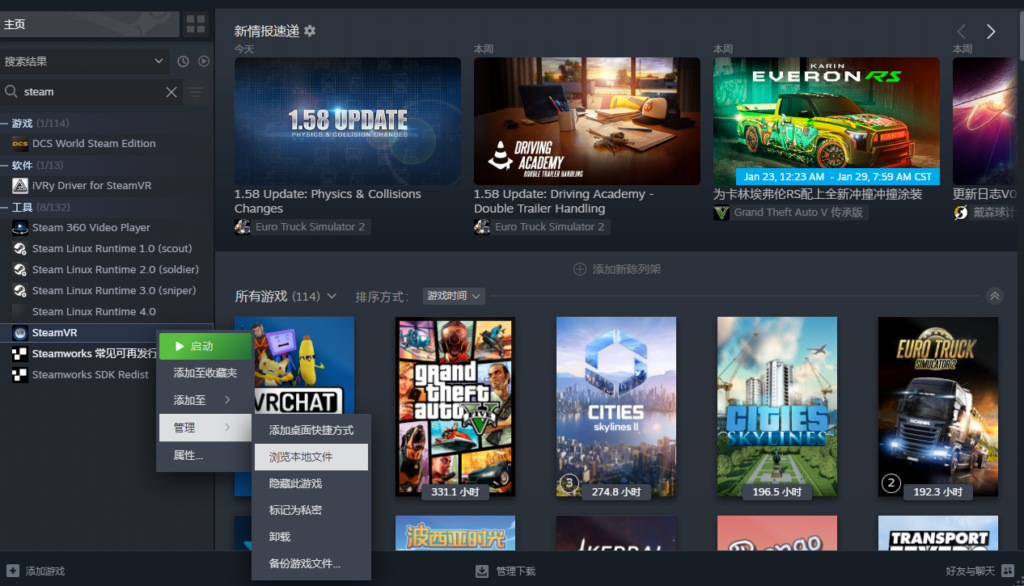
2.Once opened, the interface will appear as shown in the figure.
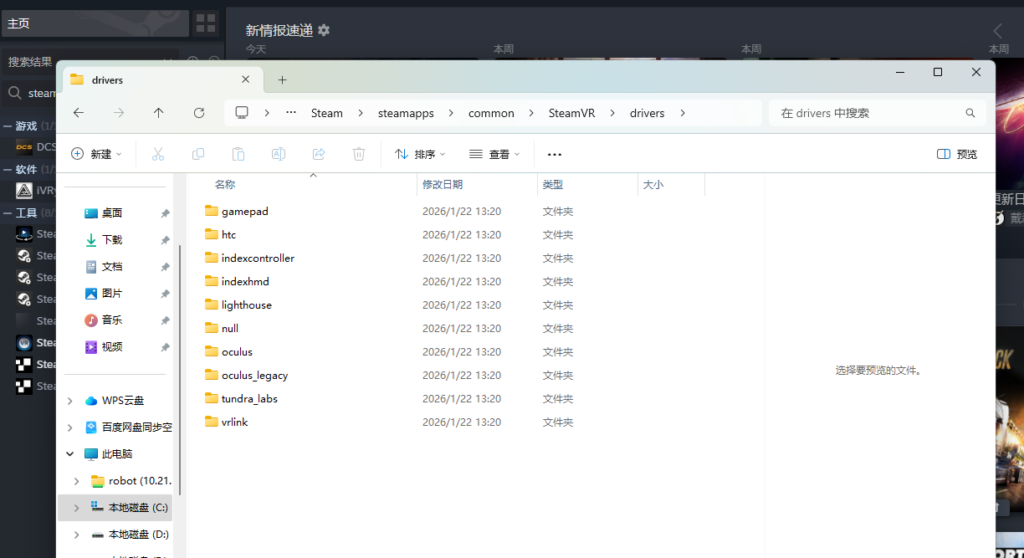
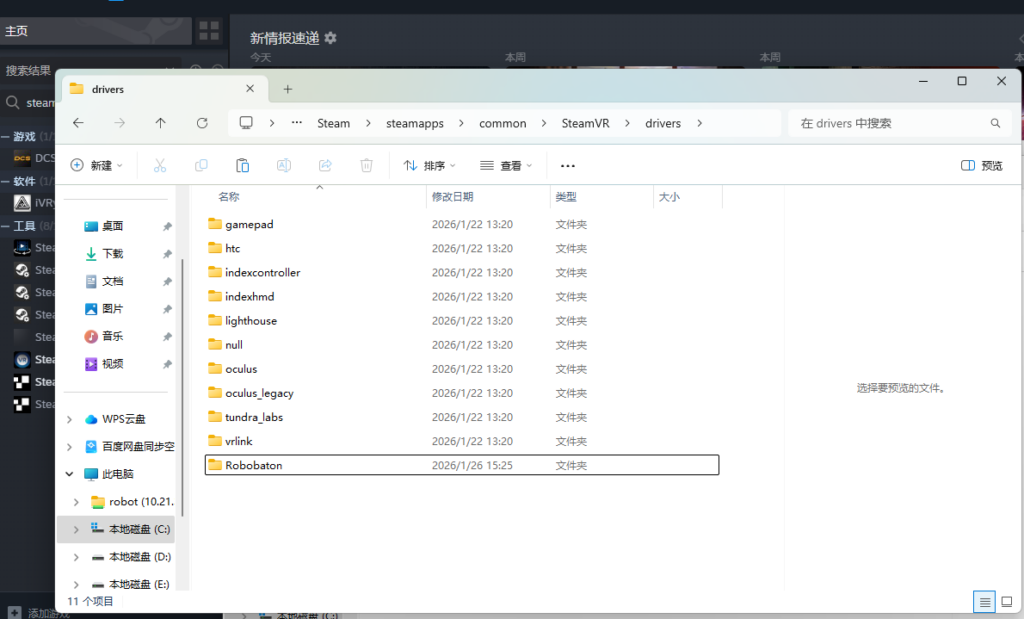
3.Then import the RoboBaton Mini Driver into this folder.
Step 3: Code
The driver is still in the development phase. If you are interested and would like to view the code, you can click the link below.
https://github.com/JackyM04/RobotBaton_mini_steamvr_driver
Step 4: Demonstration Video
Here is our YouTube video link:https://www.youtube.com/watch?v=iDRyg_b-JCQ . If you are interested in us, feel free to follow our channel — we will release more interesting videos and products in the future.
RoboBaton Mini Driver Download Link: https://github.com/JackyM04/RobotBaton_mini_steamvr_driver/releases/
RobotBaton Driver Installation Process and SDK Introduction (for SteamVR/OpenVR)
This article is intended for developers and content creators looking to integrate RobotBaton with SteamVR/OpenVR. It outlines the general process of driver installation and introduces the capabilities and usage of the RobotBaton Mini SDK, helping you complete the integration faster and understand the product value.
I. Why Focus on RobotBaton
RobotBaton offers devices and SDKs for visual/IMU odometry and pose tracking, aiming to reduce the integration costs for developers in scenarios such as VR tracking, robotics, and embodied intelligence. For users who need to connect the device to SteamVR/OpenVR, driver installation is the first step; meanwhile, the SDK determines what data you can obtain and what secondary development you can carry out.
II. Driver Installation Process (General Method for SteamVR/OpenVR)
Note: The following process is for the general installation method of SteamVR/OpenVR custom drivers, suitable for the development and debugging phase. If an installation package is provided for the official release version, please follow the official installation process.
Registering the Driver to SteamVR
There are two common “installation/registration” methods for SteamVR (commonly used in development and debugging):
- Method A: Copy to the SteamVR Driver DirectoryCopy the driver folder from the build output to:C:\Program Files (x86)\Steam\steamapps\common\SteamVR\drivers
- Method B: Add External Driver Path in openvrpaths.vrpathEdit the file:C:\Users<Username>\AppData\Local\openvr\openvrpaths.vrpathAdd the driver folder path to the “external_drivers” list.
Tip: Method B is more recommended during the debugging phase (no need to copy to the Steam directory, facilitating iteration).
III. Introduction to the RobotBaton Mini SDK
The RobotBaton Mini SDK provides the ability to control and receive device algorithms and data streams, with core features including:
- Data and Output Capabilities (Covering Major Perception Links)
- IMU data stream: Used for high-frequency pose/inertial navigation fusion
- Binocular camera raw images (left and right eyes): Facilitating visual/depth/SLAM processing
- Odometry/pose output: Including pose and speed structures (pose_t/speed_t/odom_t), with fields directly applicable to upper-layer algorithms
- Algorithm and Device Control (Facilitating Automated Integration)
- Support for control interfaces for starting/stopping/restarting algorithms
- Support for reading device version and parameter information
- Support for setting network information (e.g., client IP), facilitating multi-machine/multi-terminal deployment
- Callback and Data Integration (Integrate with Your Own Application Logic)
- Non-ROS environment: Need to implement callback functions for IMU, odometry, and left/right eye images to integrate data
- The data types received via callbacks are clear, making it easy to directly connect to your tracking, relocalization, or visualization modules
- Support for Both ROS and Non-ROS Environments
- ROS environment: Build via ros_build.sh and provide interfaces for publishing IMU/image/odometry data
- Non-ROS environment: Build via build_non_ros.sh and implement callback functions as needed to integrate data
- High-Frequency Odometry (Beta Feature)
- The SDK Demo mentions a 200Hz odom reception mode, which can be used when high-frequency data is required
- Reminder: If high-frequency odometry is not necessary, it is not recommended to enable this mode to avoid jitter amplification caused by interpolation
- Firmware Version Requirements
- The device software version must be newer than 2025-03-17; if the version is outdated, update the firmware before using the SDK
IV. SDK Quick Integration Ideas
The following are simplified steps for developers:
- Select the Development Environment
- With ROS: Prioritize using ROS projects and topic publishing interfaces
- Without ROS: Use the non-ROS Demo to process callbacks directly
- Configure the Network
- Set the device IP and local IP in the ROS baton_mini.launch file or code
- Subscribe to Data CallbacksIn a non-ROS environment, you need to implement callbacks for IMU, odometry, and left/right eye images to integrate with your algorithms or application logic.
- Start Algorithms and Data StreamsCall the SDK interface to start the algorithm and enable IMU/image/odometry data reception.
V. Why This SDK Is Valuable to You
- Low-threshold Integration: Demo projects can be compiled directly with clear callback entry points
- Rich Data: One-stop access to IMU, binocular images, and odometry data
- Ecosystem-friendly: Compatible with ROS, facilitating integration with robotics/SLAM/perception stacks
- VR-adaptive: Can be used in conjunction with SteamVR/OpenVR drivers
VI. Call to Action
If you are building VR tracking, embodied intelligence, or robotics applications, welcome to follow RobotBaton. We provide driver and SDK support to help you complete integration and verification faster.